Classic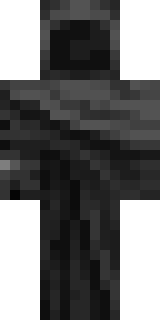
THE SKIN COLLECTION
Find your next character. Explore 18 handpicked skins, check the preview, and download the original PNG straight to your device.
FIND YOUR STYLE
From quiet hoodies to legendary armor.
18 skins
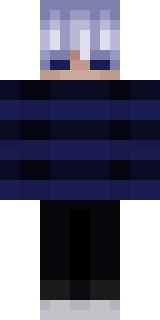
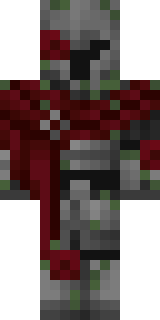
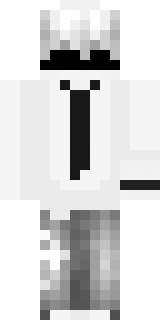
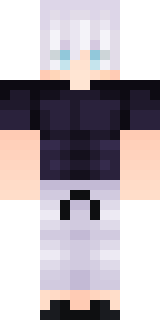
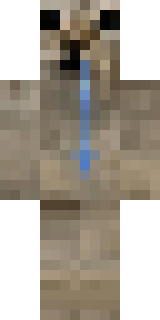
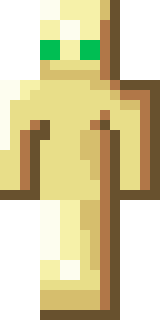
Try another name, category, or model.
ABOUT THE COLLECTION
Give your Minecraft character a fresh appearance with this collection of Mojo Launcher skins. You can browse 18 designs, inspect their character previews, and download the original PNG files directly from this website. Whether you prefer a simple hoodie, a fantasy knight, an anime-inspired outfit, or a playful creature, the gallery helps you compare different looks before saving a file.
MojoLauncher runs Minecraft Java Edition on Android. A player skin changes your character’s appearance, so choosing one is a way to personalize screenshots, survival adventures, and multiplayer sessions. The collection includes both Classic and Slim models. Each card shows its model, image dimensions, and file size, making it easier to pick a suitable texture for your account.
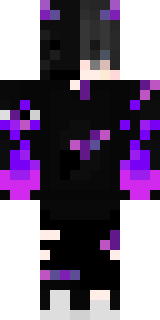
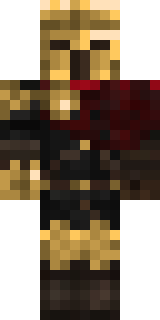
Start with the category filters above if you already have a particular look in mind. The Fantasy selection includes Shadow Knight, Violet Flame, Rose Knight, Golden Guardian, Sandstone Explorer, and Golden Totem. These designs offer armor, darker colors, or gold accents for players who enjoy an adventure theme.
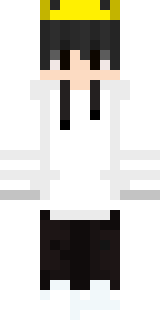
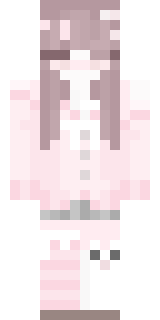
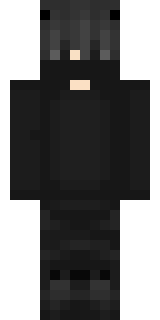
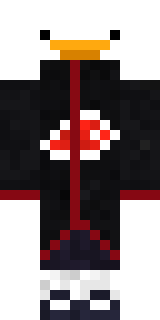
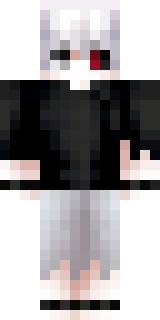
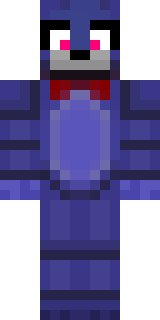
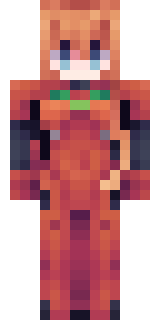
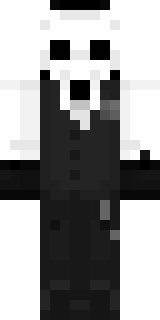
For everyday outfits, explore Casual skins such as Crowned Hoodie, Strawberry Pink, Midnight Stripes, White Tie, and Silver Hair. The Anime category contains Duck Shinobi, Crimson Eye, and Scarlet Pilot. If you want a character with a different silhouette or face, browse Creatures for Little Ghost, Black Cat, Indigo Rabbit, and Skull Suit.
Search by a skin’s gallery name or category, then narrow the results using the model selector. Switch between Front and Back to compare both sides of an outfit. The 3D preview lets you drag the character to look around it, which is useful for checking details that a single front image cannot show.
Every Download PNG button saves a skin file from our own server. Choose the card you like and download its texture to your device. The file is the small, flat image Minecraft uses to build the character’s appearance; it will look different from the full-body gallery preview when opened in an ordinary image viewer.
If you want several choices, use the complete 18-skin ZIP download. Extract the archive with your device’s file manager, then select an individual PNG when applying a skin. Keep the remaining files as a collection so you can change your look later without downloading each design again. Upload a PNG rather than the ZIP itself.
Classic and Slim describe the character model used to display a skin. The main visible difference is the arm shape: Classic uses wider arms, while Slim uses narrower arms. Check the model badge on the download card and select the matching option when your account’s upload screen asks for a model.
Using the wrong model can make parts of an outfit look misaligned around the arms. If the character preview looks right here but the sleeves look unusual in game, check that setting before editing the image. Keep the downloaded PNG at its original dimensions and avoid stretching, cropping, or converting it into a photo format.
After saving a texture, apply it through the skin service associated with the account you use to play. For a Microsoft account with Minecraft Java Edition, open your Minecraft account’s Java skin settings, choose the appropriate model, upload the PNG, and confirm. Then launch Mojo with that same account and inspect your character in a world.
If you play through a supported Ely.by account, apply the skin to that account instead. Account options and menu names can vary between launcher builds. Downloading a file does not automatically change the selected account’s skin, and applying a texture to one account does not update another account.
A compatible skin mod can also load local textures, but it needs the correct game version, loader, and configuration. For background on loaders and game profiles, read our Java mods guide. A local skin affects what your client displays; other players do not automatically receive your PNG.
First, confirm that you uploaded the original PNG rather than a screenshot of the character preview. Next, check the account selected in Mojo Launcher. Close and relaunch the game after changing the skin, and make sure your device can connect to the account’s skin service. Use third-person view to check your player’s appearance.
For a local skin mod, check the active instance directory, the expected filename, and the mod’s source priority. If a different texture appears, another configured skin source may be taking priority. Server authentication and other players’ clients can also affect which skin they see, so a successful local preview does not guarantee identical results on every server.
Choose a player skin when you want to change your character’s outfit or appearance. Choose a resource pack when you want different block textures, items, sounds, or other game assets. A standalone skin PNG does not become a complete resource pack by placing it inside the resourcepacks folder. Visit our resource pack downloads for that kind of customization, or return to the skin collection to choose your next character.
Yes. All 18 skin PNGs in this gallery are available as free direct downloads. You can save one design or download the complete ZIP collection from this server.
No. The gallery downloads are PNG images, and the collection download is a ZIP archive. You can save them through your browser without installing a separate skin downloader APK.
Yes. Use the Front and Back controls to inspect the gallery images, or open a card’s 3D preview and drag the character to view it from different angles.
Yes. Save another PNG and apply it through the same account or compatible skin loader. Keep your favorite files together so they are easy to find when you want another outfit.


