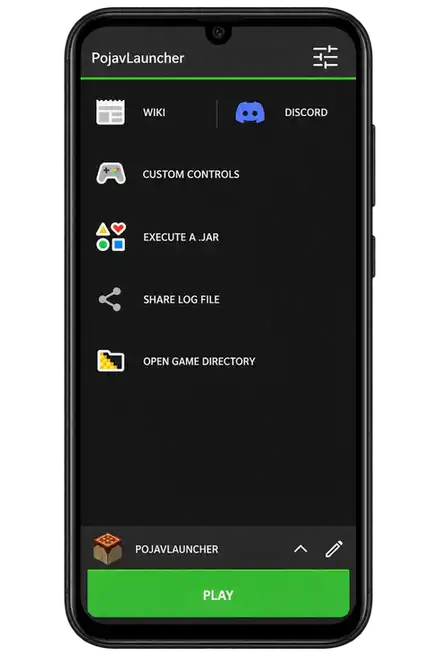
Playing Minecraft Java Edition on a phone can bring up questions about controls, game versions, and settings. PojavLauncher is the app that runs your game; Discord is a separate place where a community can share discussions and information.
The invite on this page opens PojavLauncher [Public Archive]. Check that server name before accepting the invite. Because this is an archived community, some areas may be read-only or restricted, and it should not be treated as a promise of active support.
PojavLauncher Discord Server
Use the green button in the hero to open the invitation. It takes you to Discord, where you can review the server and decide whether to join. There is no separate “PojavLauncher Discord APK” to install.
If Discord is already on your device, the link may open in the app. Otherwise, you can continue through the supported browser or Discord setup on your device. Sign in to your own account to accept the invitation.
How to Join on Android or iPhone
- Tap Open Discord Server at the top of this page.
- Open the invite with Discord or your browser, and sign in if needed.
- Check that the server is named PojavLauncher [Public Archive], then accept the invitation.
- Read any welcome information and complete the verification Discord or the server asks for.
- Look at the channels available to your account. Access can depend on the server’s current settings.
You do not need to change the language inside PojavLauncher or download a modified launcher to open this invite. The server link and the game app are separate.
How to Join on PC
Open the same invite in your browser or Discord desktop app. Sign in, review the server name, and accept the invitation. If you prefer to enter it manually, use Discord’s join-server option and paste https://discord.com/invite/aenk3EUvER.
The invitation code is aenk3EUvER. Keep its capitalization when copying it. A mistyped character can lead to an invalid invitation.
What Can You Find in the Server?
An archived server may contain older conversations, announcements, and information shared while the project was active. What you can read depends on the channels and permissions available when you join. Do not assume every old installation tip still matches your phone or game version.
For steps you can follow on this site, use our PojavLauncher Mods, iOS, and resource-pack guides. If you are checking an earlier app setup, the old-version page has direct APK downloads.
Discord Invite Not Working?
- Unknown or expired invite: the invitation may no longer be available. Check the link rather than repeatedly typing a different code.
- Invalid code: copy the complete invitation and preserve its uppercase and lowercase letters.
- Account or verification issue: sign in to the account you want to use and complete the required verification.
- Server limit reached: check whether your Discord account has reached its server limit.
- Server restriction: if that server has blocked your account, only its administrators can address the restriction. This website cannot lift it.
Invitation availability and server permissions can change. The link was checked when this page was created, but your account may still have to complete Discord’s joining requirements.
Before Asking About a Game Problem
For account, launch or control issues, try the setup troubleshooting checks before preparing your error details.
If a channel allows questions, explain what happens instead of only writing “not working.” Include your device, Minecraft version, launcher version, renderer, and whether you use mods. If there is an error message, describe that too.
Start by checking the base game without extra mods. This makes it easier to tell whether the problem belongs to the launcher, a game profile, or a particular mod. An archived community may not provide a reply, so keep the guides and your own working setup available.