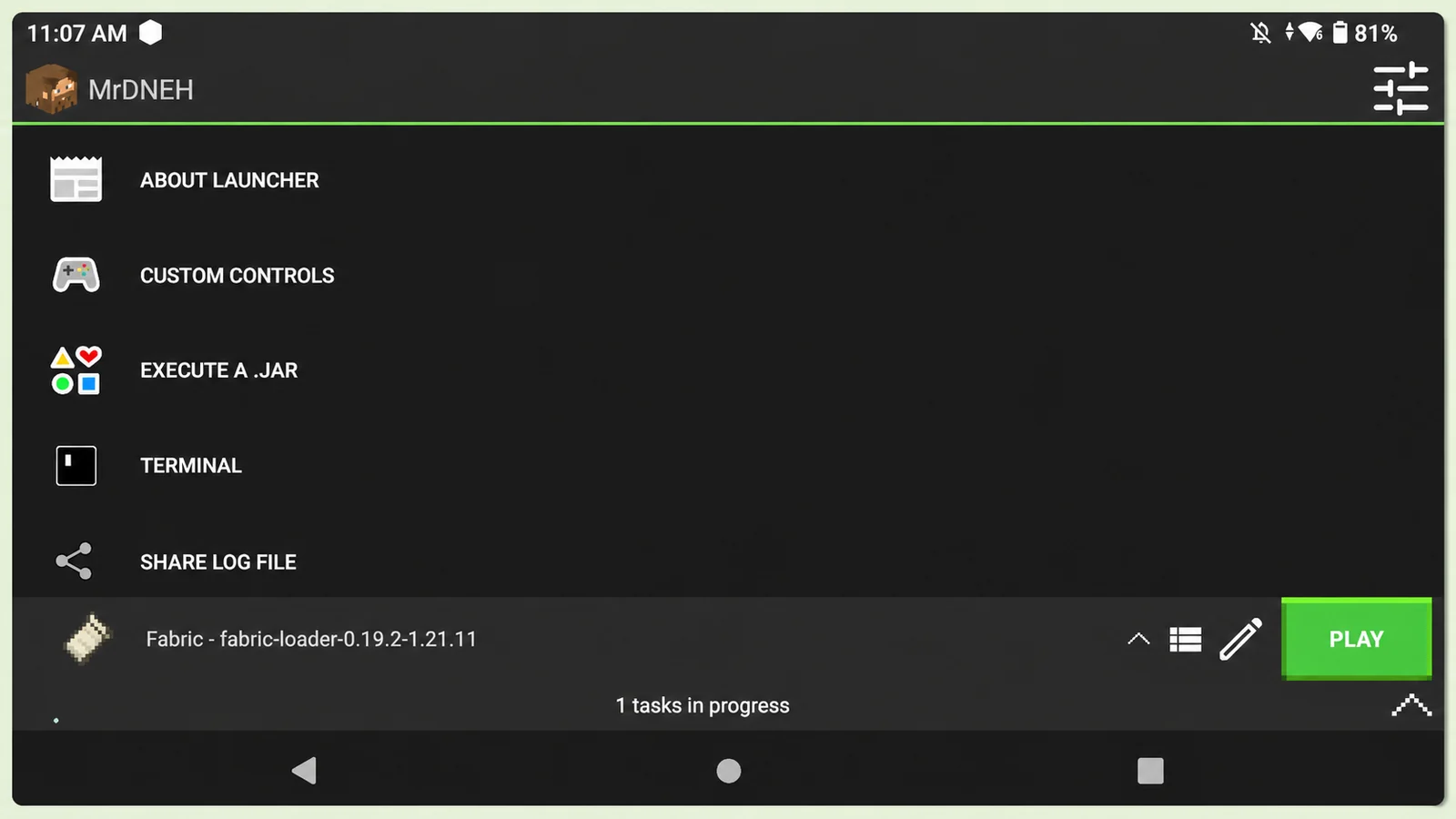
PojavLauncher Glow Worm is a modified version of PojavLauncher that lets you play Minecraft Java Edition on your Android phone. It comes with extra graphics renderers and settings, giving you more options when running Minecraft, mods, and shaders.
If you already use PojavLauncher, you'll find Glow Worm quite familiar. The main difference is its additional rendering options, which you can try depending on your phone and Minecraft version.
What Is PojavLauncher Glow Worm?
PojavLauncher Glow Worm is an alternative Android launcher for Minecraft Java Edition. It keeps the basic features of PojavLauncher, including Minecraft profiles, Microsoft login, and touch controls, while adding more graphics options.
One of its main features is support for additional renderers. These give you different ways to run Minecraft graphics, which can be useful if you experience display problems or want to test shaders.
However, Glow Worm isn't guaranteed to increase your FPS. Performance still depends on your phone, Minecraft version, and selected renderer.
PojavLauncher Glow Worm Features
Here are some of the features you can expect:
- Extra Renderers: Try different graphics backends depending on your device and launcher build.
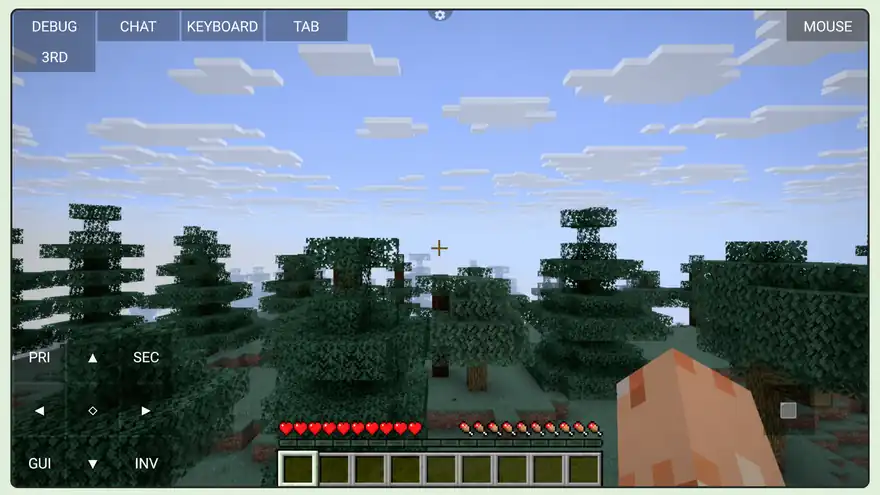
- Minecraft Java Edition: Play Java Edition on your Android phone using on-screen controls.
- Mods Support: Use compatible Fabric and Forge mods with the correct Minecraft version.
- Shader Support: Run supported shaders using a compatible renderer and shader loader.
- Custom Profiles: Create separate Minecraft profiles for normal gameplay, mods, or shaders.
Keep in mind that some features may differ between Glow Worm versions.
Download PojavLauncher Glow Worm APK
The available download is a modified AnTuTu build of Glow Worm for ARM64 Android devices.
| APK Details | Information |
|---|---|
| Name | PojavLauncher Glow Worm |
| Build | AnTuTu 20260103 |
| Platform | Android ARM64 |
| File Size | 193 MB |
| Release Date | January 7, 2026 |
| Format | APK |
How to Install PojavLauncher Glow Worm
Before installing, back up your existing Minecraft worlds if you already use PojavLauncher.
- Download the Glow Worm APK using the link above.
- Open your phone's file manager and find the APK.
- Tap the file and allow installation from that source if Android asks.
- Complete the installation and open Glow Worm.
- Sign in using your Microsoft account that owns Minecraft Java Edition.
Once you're signed in, you're ready to set up your first Minecraft profile.
How to Set Up Minecraft in Glow Worm
After opening the launcher, select a Minecraft version and create a profile. If you're using Glow Worm for the first time, start with a regular Minecraft version without mods.
Tap the pencil icon next to your profile to open its settings.
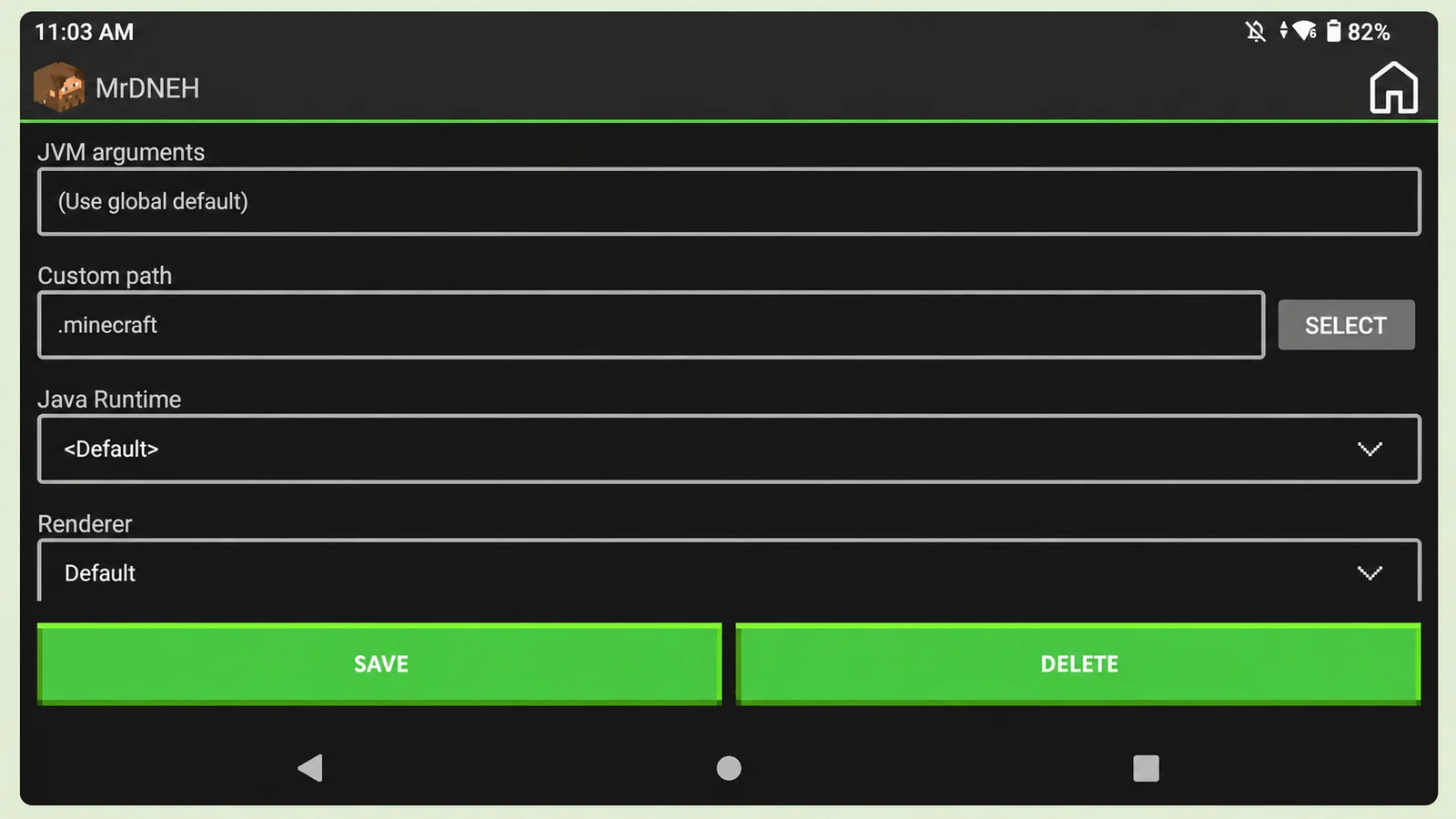
Here you may find options such as Custom Path, Java Runtime, and Renderer.
You can leave most settings at their defaults for your first launch. Save your profile, tap Play, and let the launcher download the required Minecraft files.
Once the game opens, create a world and check whether everything works properly before adding mods or shaders.
For more information about the launcher controls, see our PojavLauncher usage guide.
How to Change Renderers in PojavLauncher Glow Worm
The extra renderer options are one of the main reasons to try Glow Worm.
To change your renderer, open the launcher settings and go to Video and Renderer. You'll see the available graphics options for your installed build.
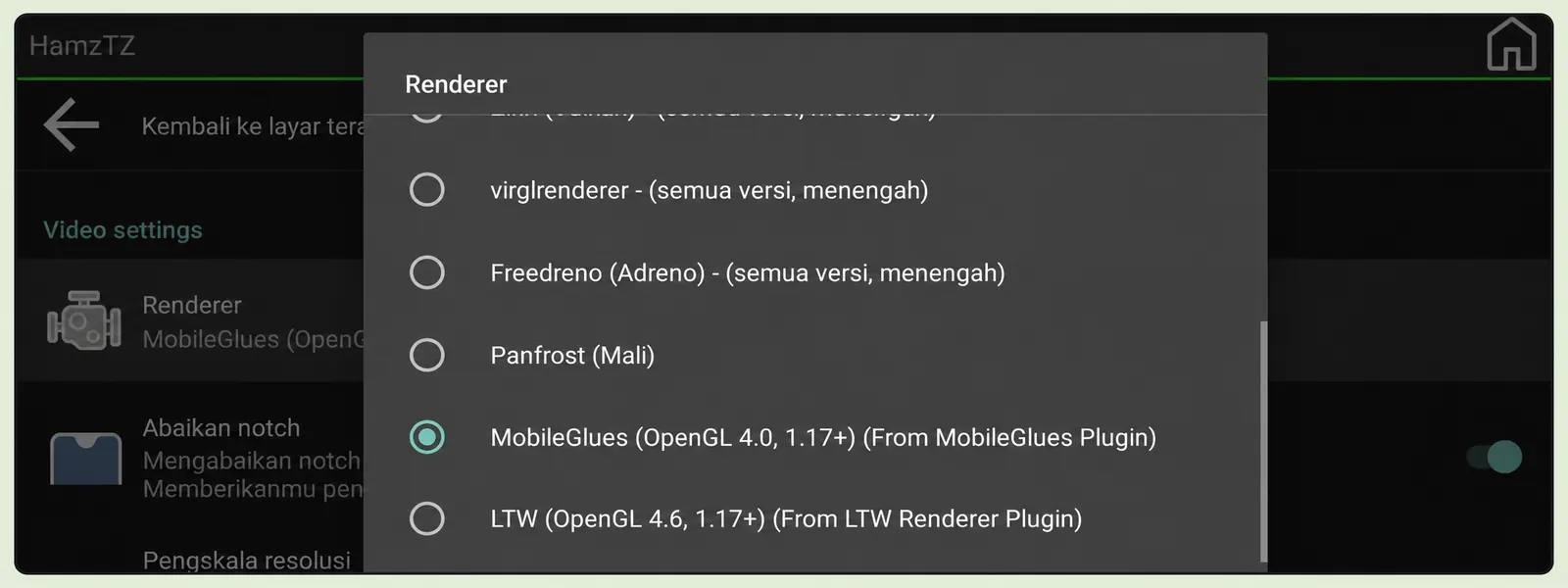
Some builds support MobileGlues through a separate renderer plugin. If you don't see it in your settings, your build may not include the required plugin support.
Try one renderer at a time and launch Minecraft to see how it performs. If you experience a black screen or crash, switch back to your previous working option.
How to Use Mods and Shaders in Glow Worm
You can install supported Minecraft mods using Fabric or Forge, but make sure your mod files match the Minecraft version and loader you're using.
Place the mods in the correct mods folder for your selected profile. You can follow our PojavLauncher mods guide for the full process.
For shaders, you'll need a compatible setup such as OptiFine or Iris with Fabric.
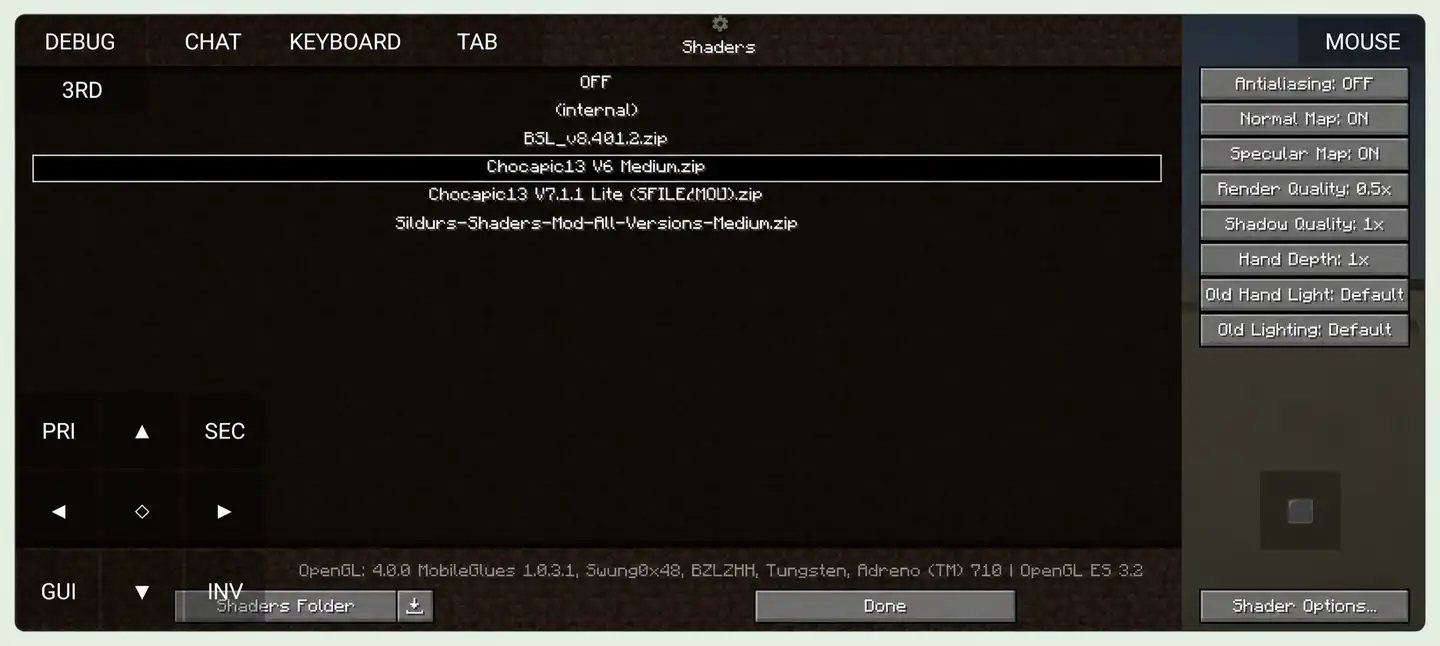
Once you've installed a compatible shader pack, open Minecraft's shader settings and select it.
If the game becomes slow, try reducing the render quality or using a lighter shader pack. Not every shader will work on every Android device.
PojavLauncher Glow Worm Not Working?
If Minecraft won't launch or keeps crashing, try these fixes before reinstalling the launcher.
| Problem | Possible Fix |
|---|---|
| Black screen | Change to a working renderer |
| Game crashes | Check Java Runtime and Minecraft version |
| Mods not working | Check the mod loader and dependencies |
| Low FPS | Reduce render distance and graphics quality |
| Shaders crashing | Disable the shader and test again |
| APK won't install | Check ARM64 support and available storage |
If the game was working before, remove the last mod, shader, or setting you changed. This can help you find the problem much faster.
FAQs
Is PojavLauncher Glow Worm better than the original?
Glow Worm offers additional graphics options, but that doesn't always mean better performance. You can try both launchers to see which works better on your phone.
Does PojavLauncher Glow Worm support shaders?
Yes, you can use compatible shaders with the right renderer and shader loader. Performance depends on your phone's hardware.
Can I use Glow Worm on iOS?
No, Glow Worm is an Android launcher. If you have an iPhone or iPad, check our PojavLauncher iOS guide.
Does Glow Worm support Minecraft mods?
Yes, it supports compatible mods through loaders such as Fabric and Forge. Make sure the mods match your Minecraft version.
Final Words
PojavLauncher Glow Worm is worth trying if you want more graphics options while playing Minecraft Java Edition on Android. You can experiment with different renderers, mods, and shaders to find a setup that works for your device.
For the best experience, start with a basic Minecraft profile and test additional features one at a time.